 Scannera
OCR Scanner for Android
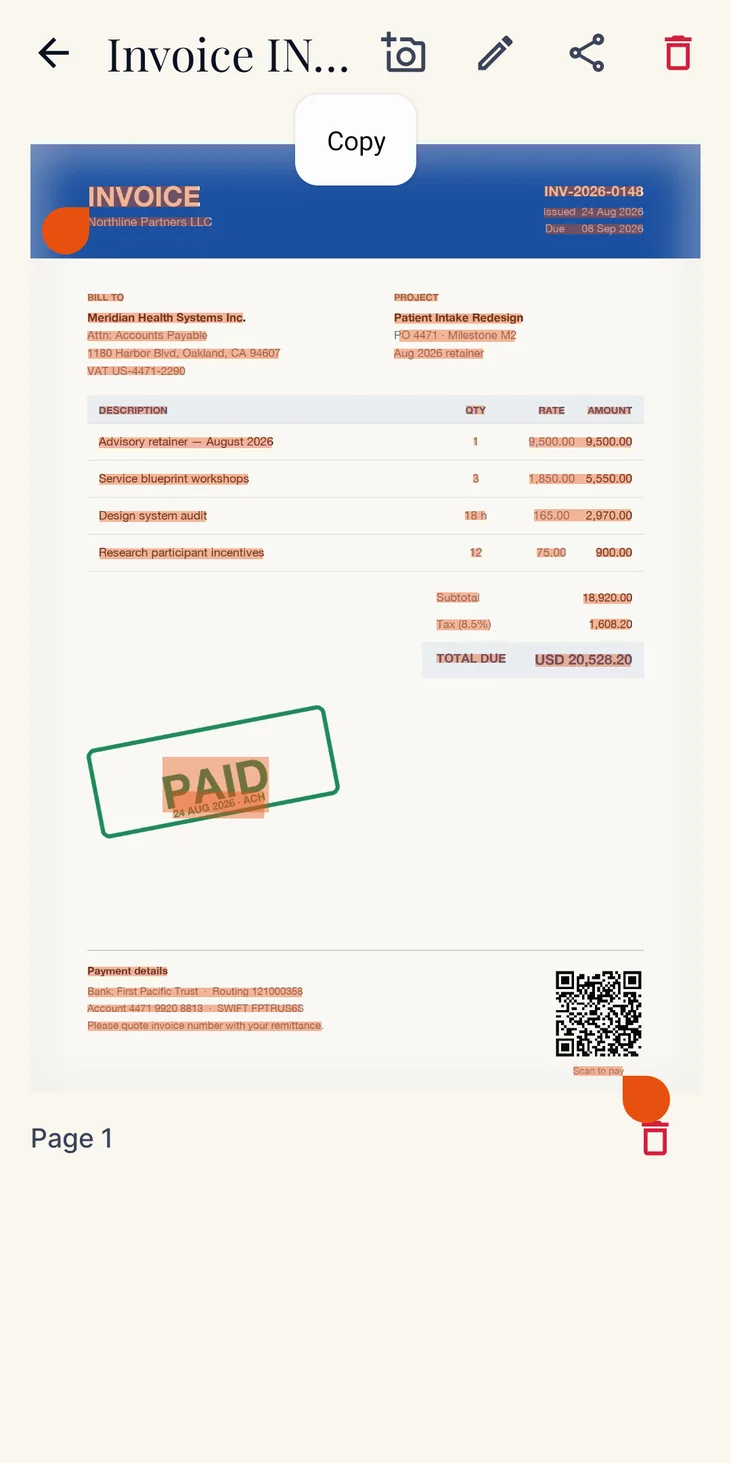
Scannera reads the text on a scanned page using an OCR model bundled inside the app, so recognition happens on your phone with no upload and no connection. The result comes back as plain text you can copy, share or paste anywhere.
What is an OCR scanner?
When you photograph a page, your phone stores a picture of some words. It has no idea what they say. To the software, the sentence is just a pattern of light and dark, no different from a photograph of a tree.
OCR, short for optical character recognition, is the step that closes that gap. It looks at the shapes on the page, works out which letters they are, and hands back actual text: characters you can select, copy, paste and search rather than pixels you can only look at.
An OCR scanner is simply a scanner with that step built in. You point it at a printed page, and instead of only getting an image back, you get the words too.
OCR that works offline
This is the part that makes Scannera's text recognition different from most of what you will find.
A great many OCR apps are a thin shell around a web service: your page is uploaded, recognised on someone else's servers, and the text is sent back. That works, but it means every document you read has to travel, and nothing happens at all when the signal drops.
Scannera ships the recognition model inside the app. The work happens on your phone's own processor, which has two consequences worth stating plainly:
- It works with no connection. You can recognise text in airplane mode, in a basement, or on a train going through a tunnel.
- The page does not go anywhere. There is no upload step in recognition, because there is nothing to upload to.
The trade-off is that the model has to be small enough to ship with an app, which is what shapes the limitations further down this page. The offline document scanner page covers which other parts of Scannera work the same way.
Extract text from scanned documents
- Scan or import the page. Capture it with the camera, or bring in a PDF or image already on your device. Edge detection and perspective correction straighten it first, which matters more for recognition than people expect.
- Run recognition. The bundled model reads the page on your phone. No upload, no waiting on a server.
- Review the result. Read what came back against the page. OCR is a best effort, not a guarantee, and this is the step people skip.
- Copy or share. Take the recognised text out as plain text, into an email, a note, a message, or anywhere else you need the words rather than the picture.
The scan itself is unaffected by any of this. You still have the PDF of the page, filtered and annotated as usual; the recognised text is something you get in addition to it, not instead of it.
OCR without uploading your documents
The documents worth running OCR on are rarely trivial: invoices with account numbers, letters from a doctor, contracts, forms with your address on them. Recognition happening on the device means those pages are read where they already are, rather than being sent somewhere to be read.
It would be overstating it to say nothing ever leaves your phone, so here is the honest version. Scannera uses the network in three places, none of which is text recognition: verifying a Pro purchase through Google Play, syncing Google Drive backup when you have turned it on, and sending anonymous crash reports and usage analytics. That diagnostic data contains no document content.
Google Drive backup is optional and off by default, and when enabled it copies files to your own Google account. The private document scanner page goes through the architecture, and the privacy policy states each network use in full.
OCR limitations
Text recognition is genuinely useful and genuinely imperfect. Knowing where the edges are saves you a bad surprise.
Which scripts the bundled model covers
Recognition uses a model shipped inside the app. It covers English and the other languages written with the Latin alphabet, along with Hindi and Marathi in Devanagari, Chinese, Japanese and Korean. It is not a universal, every-language engine, and Scannera does not claim to recognise scripts the bundled model was not built for.
Results depend on the scan
A flat, well-lit, in-focus page of printed text reads far better than a creased receipt photographed in dim light at an angle. Most disappointing OCR results are really disappointing capture results, so it is worth taking the shot again rather than fighting the output.
No accuracy figure is claimed
You will see scanning apps advertise a recognition accuracy percentage. Scannera does not, because the honest answer depends entirely on the page in front of you. Treat the output as a fast, useful draft and proofread anything that matters: a figure on an invoice, a reference number, a name.
Search matches names, not recognised text
This one catches people out, so it is worth being explicit: the in-app search looks at document and folder names. It does not search the text recognised inside your scans. If you want to find a document later by something written on it, put that in the document name when you save it.
What people extract text from
Anywhere retyping is the slow part of the job: pulling a figure off an invoice, lifting a paragraph out of a printed report, getting notes into something you can edit.
Text recognition, answered
Does Scannera have OCR?
Yes. Scannera can recognise the text on a scanned page and return it as plain text you can copy or share. Recognition uses a model bundled inside the app rather than a web service.
Does the OCR work offline?
Yes. Because the recognition model ships inside the app, text recognition runs on your phone with no connection and no upload. You can recognise text in airplane mode.
Which languages does the OCR support?
The bundled model covers Latin-script languages, so English and the other languages written with the Latin alphabet, plus Hindi and Marathi, Chinese, Japanese and Korean. Scannera does not claim to recognise scripts the bundled model was not built for.
How accurate is the text recognition?
Scannera does not publish an accuracy figure, because the honest answer depends on the page. A flat, well-lit, in-focus page of printed text reads far better than a creased receipt photographed in dim light. Treat the output as a fast draft and proofread anything that matters.
Are my documents uploaded for text recognition?
No. Recognition happens on the device, so there is no upload step. Scannera does use the network in three other places: verifying a Pro purchase through Google Play, syncing Google Drive backup if you have enabled it, and sending anonymous crash reports and usage analytics that contain no document content.
What can I do with the recognised text?
The extracted text can be copied, shared and searched as plain text, so it can go straight into an email, a note, a message or a document. The scanned page itself is unaffected, so you keep the PDF as well as the words.
Can I search inside my scanned documents?
Yes. The in-app search runs across the text recognised inside your scans as well as document and folder names, so you can find a page by something written on it.
Can I run OCR on a PDF I already have?
You can import existing PDFs and images from your device into Scannera and work with them alongside your scans. Recognition runs on the device either way, with no upload.
Get the words, not just the picture.
Install Scannera for Android and pull text off a printed page without sending it anywhere.