 Scannera
Offline Document Scanner for Android
Scannera turns your Android phone into a document scanner that captures, cleans up, reads and exports paperwork without an internet connection. Scanning, OCR and PDF export all run on the device, there is no account to create, and nothing is uploaded unless you switch on Google Drive backup yourself.
What makes Scannera an offline document scanner?
“Offline” only means something if the work actually happens on your phone. In Scannera, it does.
Every step of a normal scanning session runs on your Android device, using the phone's own camera and processor. With the app installed you can put the phone in airplane mode and still complete a full document from capture to exported PDF:
- Document capture. The camera preview and shutter, including the dedicated modes for documents, agreements, ID cards, licences, passports and business cards.
- Edge detection and perspective correction. Page borders are found and the skew is straightened locally.
- Image filtering. Original, Grayscale, Black & White, Magic Color and Auto Enhance are applied on the device.
- OCR. Text recognition uses a model bundled with the app, so no page is sent away to be read.
- Annotation and signatures. Drawing, highlighting, text, shapes, notes and signature placement.
- Watermarking. Your own text is stamped onto exports before they leave the app.
- PDF creation and export. Single and multi-page PDFs are assembled and written locally, then shared wherever you choose.
A connection is only needed for two things: buying the one-time Pro upgrade through Google Play, and syncing Google Drive backup if you have turned it on. Scannera also sends anonymous crash reports and usage analytics, never your documents. The privacy policy sets out exactly what that covers.
Why use an offline document scanner?
No internet required
Aeroplanes, basements, site offices, classrooms, trains and patchy rural coverage are all ordinary places to need a scan. Scannera does not wait for a signal to finish the job.
Better privacy
Tax forms, medical letters, contracts and IDs are processed on your own hardware rather than being handed to someone else's scanning service to read.
No account required
There is no sign-up, no email and no profile. Install the app and the scanner is ready. Nothing is gated behind registration.
Fast local processing
Pages are not uploaded and downloaded again to be enhanced or read, so a batch of scans finishes at the speed of your phone rather than your connection.
Fewer places for data to sit
Files that were never uploaded do not need to be tracked down and deleted later. What stays on your device stays under your control.
Cloud backup still available
Offline processing does not mean no backup. Turn on Google Drive backup and finished PDFs copy to your own Google account, on Wi-Fi only if you prefer.
What you can do without a connection
The tools that matter most to offline scanning, all part of the Scannera document scanner.
Automatic document detection
Page boundaries are found as you frame the shot, and perspective skew is corrected so a photo taken at an angle comes out square.
Multi-page PDF scanning
Batch mode captures page after page in one session, reviews them together, and exports the set as a single PDF. Free scans have a page limit per batch; Pro removes it. More on the PDF scanner.
Offline OCR
Text is recognised with an OCR model bundled inside the app, so a scan can be turned into copyable text with no connection and no upload.
PDF annotation and signatures
Draw, highlight, add text, shapes, arrows, dates and sticky notes, and place a signature you drew, typed or photographed, on your scans or on PDFs you import.
Custom watermarks
Stamp your own text across exported PDFs and shared images, useful for marking a contract as a copy before you send it on.
QR and barcode tools
The camera reads standard QR code and barcode formats on device, and the generator turns any text or link into a QR code.
App Lock
Require your device screen lock (PIN, pattern, password or fingerprint) before the app will open, so a borrowed phone does not open your paperwork.
Import and organise
Pull in PDFs and images already on your device, sort everything into colour-coded folders, and find documents by the words inside them.
Five capture filters
Original, Grayscale, Black & White, Magic Color and Auto Enhance clean up contrast and readability before the page is exported.
Offline OCR on Android
Scannera can recognise the text in a scanned page using an OCR model that ships inside the app. Because the model is on the device, recognition works with no connection and the page itself is never sent anywhere to be read.
The bundled model recognises Latin-script text along with Hindi and Marathi, Chinese, Japanese and Korean. It is not a universal, every-language engine, and like any OCR its results depend on the quality of the scan: a flat, well-lit, in-focus page reads far better than a creased receipt photographed in the dark. Expect to proofread the output rather than trust it blindly.
Once a page has been recognised, the extracted text can be copied and shared as plain text, so it can go straight into an email, a note or a document. The in-app search also runs across the recognised text inside your scans, not just document and folder names. The OCR scanner page goes further into how recognition works and where its limits are.
Your documents stay on your device
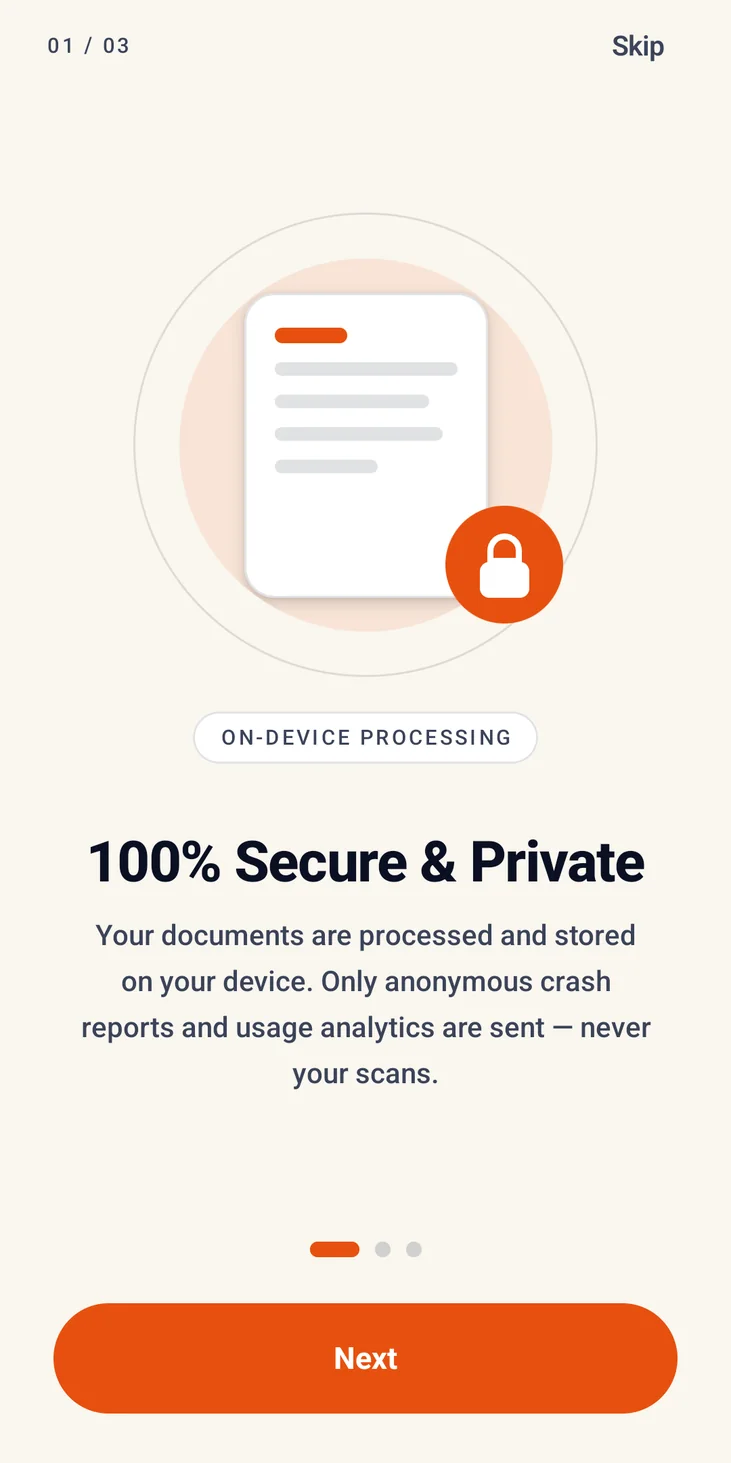
Scanning, editing and filtering, text recognition, annotation and signing, and PDF generation all happen locally on your Android phone. There is no account, no profile and no upload step in a normal scanning session. The file you export is written on your device and goes only where you send it.
There is one deliberate exception, and it is worth stating plainly. Google Drive backup is optional and off by default. If you turn it on, Scannera signs in to your Google account and copies your scanned PDFs to your Drive automatically, and over Wi-Fi only if you prefer. It asks for access to the files it creates in your Drive, not the rest of your Drive. Nothing goes to a Scannera server; there isn't one for your documents.
Scannera is also not an app that never touches the internet. It uses a connection to verify a Pro purchase through Google Play, to sync Drive backups when you have enabled them, and to send anonymous crash reports and usage analytics that help fix problems across different Android devices. That diagnostic data contains no document content. The Scannera privacy policy spells out each of these in detail, and the private document scanner page covers the architecture behind them.
Offline scanner vs cloud-based scanner
Both approaches are legitimate, and they trade off differently. Here is roughly how they compare.
| Offline processing | Cloud-based processing | |
|---|---|---|
| Internet required | Not needed for capture, editing, OCR or PDF export | Needed for the steps that run on the provider's servers |
| Document processing | Runs on your phone's own hardware | Runs on remote servers after the page is uploaded |
| Privacy considerations | Document content stays on the device unless you export or back it up | Document content is transmitted to, and handled by, a third party |
| Account requirement | Often none; Scannera needs none | Usually an account, since files are tied to it |
| Works in poor connectivity | Yes; speed depends on the device, not the signal | Degrades or stalls when the connection is weak |
| Cloud backup | Optional and separate from processing; in Scannera, your own Google Drive | Typically built in, and often the default place files live |
Who can use an offline document scanner?
Students handing in assignments, professionals filing expenses, small businesses keeping their own records, travellers away from reliable data, teachers digitising handouts, office workers clearing a paper tray, and anyone whose paperwork is nobody else's business.
Offline scanning, answered
Does Scannera work without internet?
Yes. Capture, edge detection, filtering, OCR, annotation, signing, watermarking and PDF export all work with no connection, so you can complete a document in airplane mode. A connection is only needed to buy the one-time Pro upgrade through Google Play, to sync Google Drive backup if you have enabled it, and to send anonymous diagnostics.
Can I create PDFs offline?
Yes. Scanned pages are assembled and written into a PDF on your device, including multi-page documents captured in batch mode. Free scans are limited to a set number of pages per batch and Pro removes that limit, but neither the free nor the Pro export needs a connection.
Does Scannera have offline OCR?
Yes. Text recognition uses an OCR model bundled with the app, so it runs on the device with no upload. The bundled model covers Latin-script text plus Hindi and Marathi, Chinese, Japanese and Korean, and accuracy depends on how clear the scan is, so proofread anything important. Recognised text can be copied, shared and searched as plain text.
Do I need an account to use Scannera?
No. There is no sign-up, no email and no profile. Install the app and start scanning. A Google sign-in is only involved if you choose to turn on Drive backup.
Are my documents uploaded anywhere?
Not in normal use. Scanning, editing, OCR and PDF generation all happen on your device. The exception is Google Drive backup, which is off by default; when you enable it, your PDFs are copied to your own Google account and nowhere else, and Scannera can only see the files it creates there. Anonymous crash reports and usage analytics are sent, never your documents. See the privacy policy for the detail.
Can I annotate PDFs offline?
Yes. Drawing, highlighting, text, shapes, arrows, dates, sticky notes and signatures all work without a connection, on scans you have just taken and on PDFs you import from your device.
Is Scannera available for Android?
Yes. Scannera runs on Android 8.0 and later and is available on Google Play. It is free to use, with an optional one-time Pro upgrade and no subscription.
Scan offline. Keep the paperwork yours.
Get Scannera for Android and turn your phone into a document scanner that works with or without a signal.