 Scannera
PDF Scanner for Android
Scannera turns paper into a proper PDF using your phone camera: finding the page, straightening it, sharpening the contrast, and combining as many pages as you need into a single file. Editing, signing and export all happen on the device.
What makes Scannera a PDF scanner?
A camera app gives you a photo of a page. A PDF scanner gives you a document. These are the steps in between.
Scannera takes a sheet of paper through a complete production run, from the moment you frame it in the camera to the finished file you send on. Every step below happens inside the app, on your phone.
- Capture. Frame the page in the camera. There are dedicated modes for documents, agreements, ID cards, driving licences, passports and business cards, so the app knows roughly what shape it is looking for.
- Detect and correct. Page borders are found automatically, perspective skew is straightened, and shadows are removed, so a page photographed at an angle comes out square and evenly lit.
- Enhance. Five filters clean up contrast and legibility before anything is written to a file.
- Review and organise. Batch mode gathers the pages you captured and lets you look at them together at the end. Finished documents drop into colour-coded folders, searchable by name or by the text inside them.
- Edit. Annotate, mark up and sign the document, on scans you just took, or on PDFs you imported from elsewhere.
- Watermark. Optionally stamp your own text across the export before it leaves the app.
- Export and share. Write the pages out as a single PDF, or share an individual page as an image.
None of these steps need a connection. If you want the detail on what that means in practice, the offline document scanner page walks through it.
Scan multiple pages into one PDF
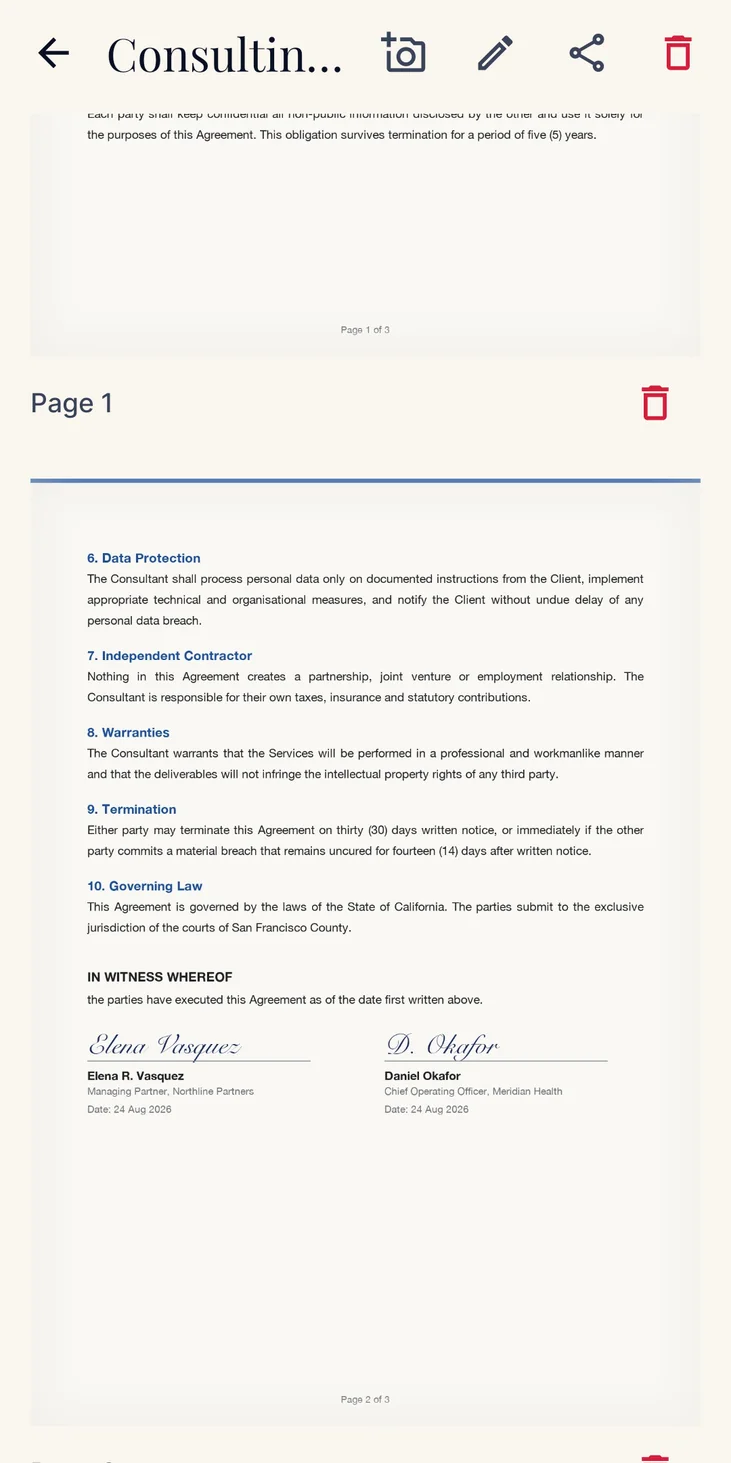
Most real documents are not one page. A contract runs to eight, a set of expense receipts to a dozen, a chapter of lecture notes to however many the lecturer filled.
Batch mode is built for that. You capture page after page in a single session without stopping to save between shots, and the app holds them together as one document. At the end of the session you review the captured pages as a set, then export the whole thing as a single multi-page PDF rather than a folder of loose images.
One limit worth knowing before you start a long document: free scans are capped at a set number of pages per batch. The one-time Pro upgrade removes that cap. Neither the free nor the Pro export needs a connection; the page limit is the only difference to the workflow.
Create clear, readable PDFs
A scan is only useful if the person receiving it can read it. Five filters, each suited to a different kind of page.
Original
Leaves the captured colours alone. The right choice for anything where the colour carries meaning: a highlighted contract, a printed photo, a colour-coded form.
Grayscale
Drops the colour but keeps the shading. Useful for printed pages with photographs or diagrams, where pure black and white would lose the detail.
Black & White
Pushes everything to two tones for maximum text contrast, and produces the smallest files. Best for plain printed text you want to be unambiguous.
Magic Color
Lifts the page towards a clean white background with crisp dark text, the way a flatbed scanner would render it. A good default for everyday paperwork.
Auto Enhance
Lets the app judge the page and adjust for it. The quickest route when you are scanning a stack of mixed documents and do not want to choose per page.
Before the filter runs
Edge detection, perspective correction and shadow removal are applied first, so the filter works on a flat, square page rather than a skewed photograph of one.
If what you actually need is the words rather than the picture of them, Scannera's on-device OCR can pull recognised text out of a scanned page and hand it to you as plain text.
Edit and annotate PDFs
Scanning is half the job. Marking the document up is the other half.
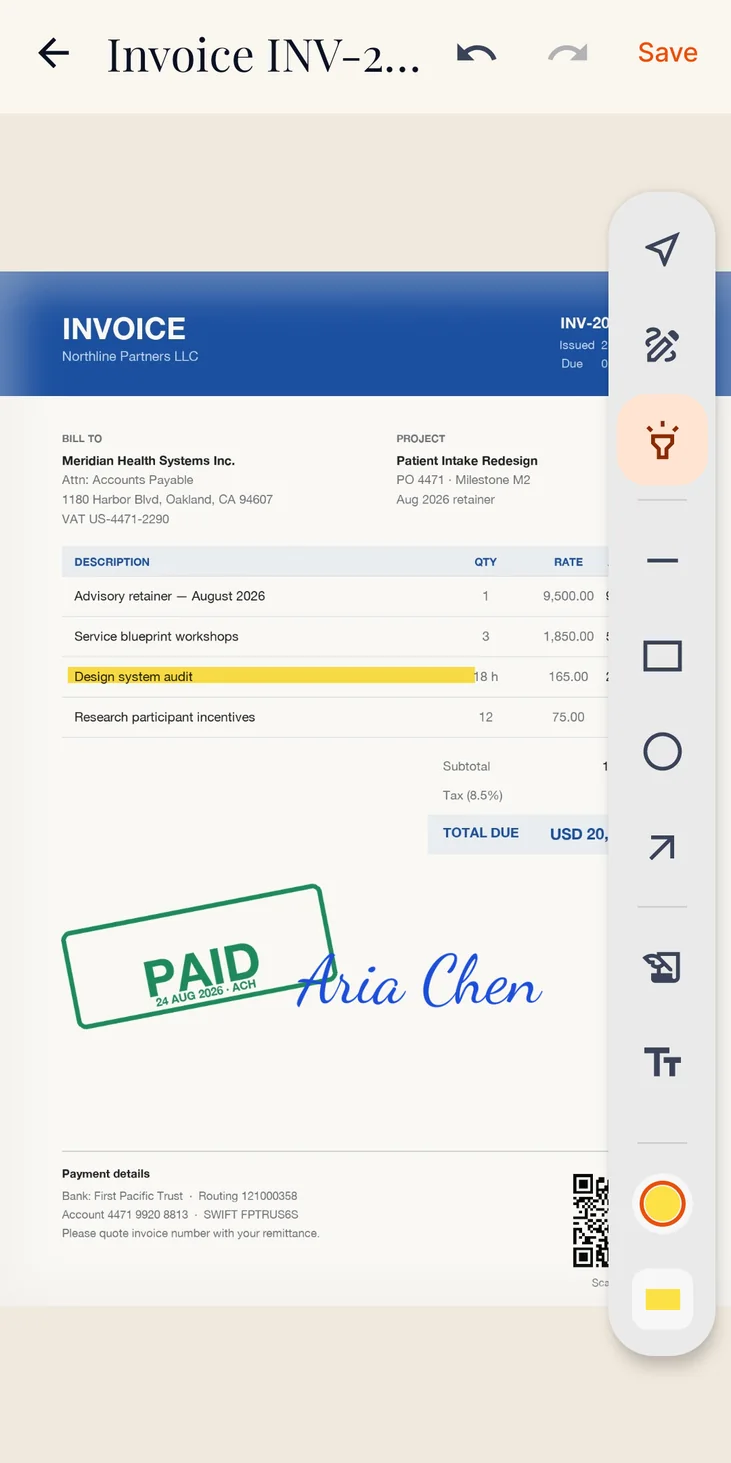
Scannera's editor works on the scans you have just taken and on PDFs you brought in from elsewhere. The full annotation set is:
- Drawing. Freehand ink over any part of the page.
- Highlighting. Mark the clause or figure that matters.
- Text. Type directly onto the document.
- Shapes and arrows. Box a section, point at a detail.
- Dates. Stamp a date onto the page.
- Images. Place an image onto the document.
- Sticky notes. Attach a comment without covering the text underneath.
Signatures
You can draw a signature with your finger, type one, or photograph an existing signature on white paper and have the background removed automatically. Saved signatures live in a library, so the one you made last month can be placed on today's contract without redrawing it.
Watermarks
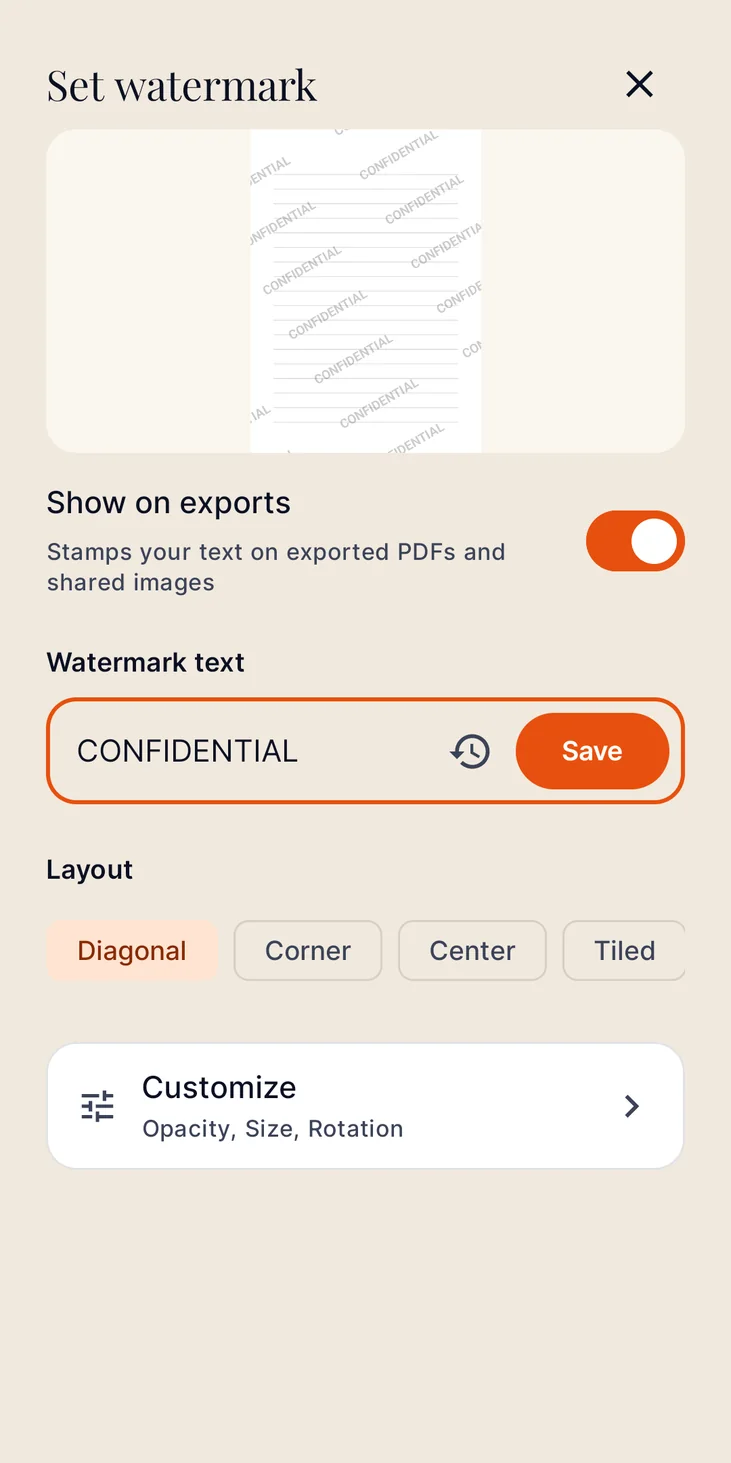
Custom text watermarks can be stamped across exported PDFs and shared images. The practical use is to mark a document as a copy, or as confidential, before you send it to someone.
Import existing PDFs and images
Not every document starts at your camera. Plenty arrive as email attachments, downloads or photos already sitting in your gallery.
Scannera can bring in existing PDFs and images from your device, put them through the same editor as a fresh scan to annotate, sign and watermark, then export the result. That makes it useful as a plain PDF editor as well as a scanner: a contract that arrived by email can be signed and sent back without the round trip through a desktop.
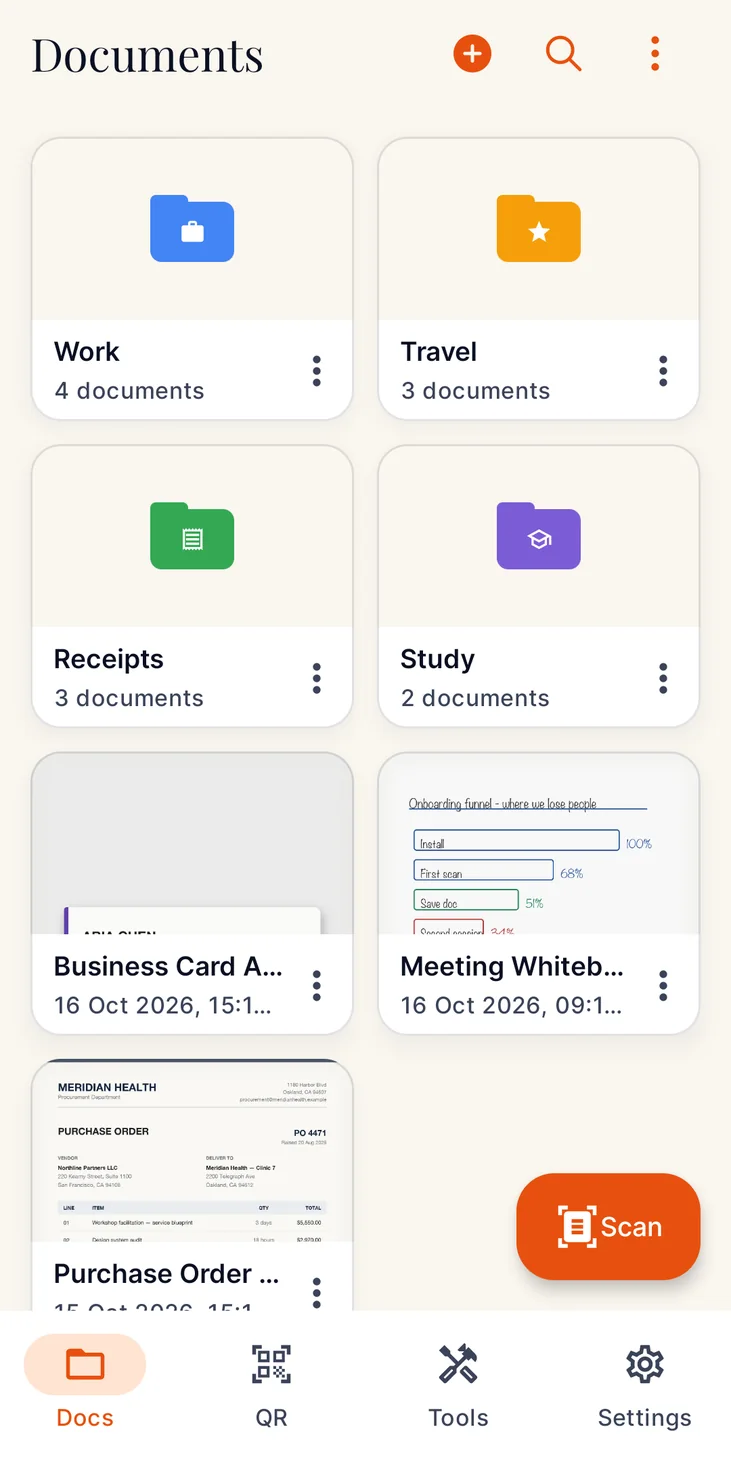
Imported documents sit in the same library as scanned ones, organised into colour-coded folders and searchable by name or by the text inside them.
Work offline
The whole PDF workflow above (capture, correction, filtering, annotation, signing, watermarking and export) runs on your phone and needs no internet connection. You can build a finished multi-page PDF in airplane mode.
A connection is only involved in three places: buying the one-time Pro upgrade through Google Play, syncing Google Drive backup if you have switched it on, and sending anonymous crash and usage diagnostics. None of those are part of making a PDF. There is more detail on the offline document scanner page.
Keep your documents private
Contracts, invoices and identity documents are exactly the things you would rather not upload to a stranger's server just to turn them into a PDF. In Scannera, the scanning, enhancement, editing and PDF generation all happen on your device, and there is no account to create before you can start.
The one deliberate exception is Google Drive backup, which is optional and off by default; when you turn it on, your PDFs go to your own Google account. Anonymous crash reports and usage analytics are sent too, never your documents. The private document scanner page covers the architecture, and the privacy policy has the full detail.
Who can use a PDF scanner?
Anyone who has been asked to “send that over as a PDF” and did not want to find a scanner to do it. Students turning in written work, professionals filing expenses, small businesses keeping their own records, and anyone clearing a tray of paper into something searchable.
PDF scanning, answered
Can Scannera scan documents to PDF?
Yes. Scanned pages are written out as a PDF on your device, either one page at a time or as a multi-page document captured in batch mode. You can also share an individual page as an image instead.
Can I scan several pages into a single PDF?
Yes. Batch mode captures page after page in one session without stopping to save between shots, reviews them together at the end, and exports the set as one multi-page PDF. Free scans are capped at a set number of pages per batch, and the one-time Pro upgrade removes that cap.
Does the PDF scanner work without internet?
Yes. Capture, edge detection, perspective correction, filtering, annotation, signing, watermarking and PDF export all run on your phone with no connection. A connection is only needed to buy Pro through Google Play, to sync Google Drive backup if you have enabled it, and to send anonymous diagnostics.
Can I edit or annotate a PDF in Scannera?
Yes. You can draw, highlight, add text, shapes, arrows, dates, images and sticky notes, and place a signature, on scans you have just taken and on PDFs you imported from your device.
Can I import a PDF that is already on my phone?
Yes. Existing PDFs and images can be imported from your device, edited in the same editor as a fresh scan, and exported again. Imported files sit in the same folder library as scanned ones.
How do I make a scan easier to read?
Five filters are available before export: Original, Grayscale, Black and White, Magic Color and Auto Enhance. Edge detection, perspective correction and shadow removal are applied first, so the filter works on a flat, square page rather than an angled photograph of one.
Can I add a watermark to an exported PDF?
Yes. Custom text watermarks can be applied to exported PDFs and shared images, which is useful for marking a document as a copy or as confidential before sending it.
Can I sign a PDF on my phone?
Yes. You can draw a signature, type one, or photograph an existing signature on white paper and have the background removed automatically. Saved signatures are kept in a library and can be placed on any document.
Paper in. PDF out.
Get Scannera for Android and turn a stack of paper into documents you can actually send.